Просмотр новости
Найдите то, что Вас интересует
 Спутники
 РН
РН SpaceX
 Роскосмос
 NASA
NASA
СпутникиРНSpaceXРоскосмосNASAIn a crowded building, a WiFi 7 mesh will happily bounce your laptop between bands until calls stutter and speeds crater. Here is how to read your RF neighborhood and use channel, width, and band-lock settings to make it stop.
The post WiFi 7 Mesh Keeps Switching Bands? Fix Apartment Interference first appeared on VentureLab.
A WiFi 7 mesh in a packed apartment building is not really fighting your walls. It is fighting your neighbors, and every time it loses, it drags your laptop down to a slower band.
You paid for WiFi 7, the speed test looks great, and yet your video call still stutters and your laptop keeps dropping to a crawl. Chances are the culprit is WiFi 7 mesh band switching: the system steering your device between the 2.4, 5, and 6 GHz bands, or between mesh nodes, faster than any connection can settle. In a dense building the switching gets worse, because your gear is reacting to interference from dozens of nearby networks. The fix is rarely a new router. It is understanding why the flapping happens and taking back control of a few band and channel settings.
In BriefBand flapping happens because your mesh’s band steering keeps reacting to congestion and to the short range of 6 GHz, so devices bounce between radios and nodes. The reliable fixes are to split your bands into separate network names so devices stop getting shuffled mid-session, disable aggressive band steering, lock problem devices to one band, pick clear fixed channels, and narrow your channel width in a crowded building. Diagnose first with a WiFi analyzer app, then change one setting at a time.
Why Your WiFi 7 Mesh Keeps Flapping BandsThree things push a mesh to keep switching, and an apartment amplifies all of them.
The first is band steering. Your system watches signal strength and congestion, then decides which band a device should use. When several bands look equally mediocre, which is common in a building full of competing networks, the algorithm second-guesses itself and moves the device back and forth. The second is the physics of 6 GHz. It carries the most bandwidth, but it fades faster through walls than 2.4 and 5 GHz, so a device that grabs 6 GHz in one room gets bounced back to 5 GHz a room away. The third is mesh roaming, where the same logic decides which node you should talk to. Stack these together and your laptop can change band and node several times during a single call.
None of that is a defect. It is the system trying to optimize in an environment that changes second to second. The problem is that the constant reoptimizing costs you more than it gives.
First, Read Your RF NeighborhoodBefore touching a setting, find out what you are actually up against. You cannot pick a clear channel without seeing which ones your neighbors have already crowded.
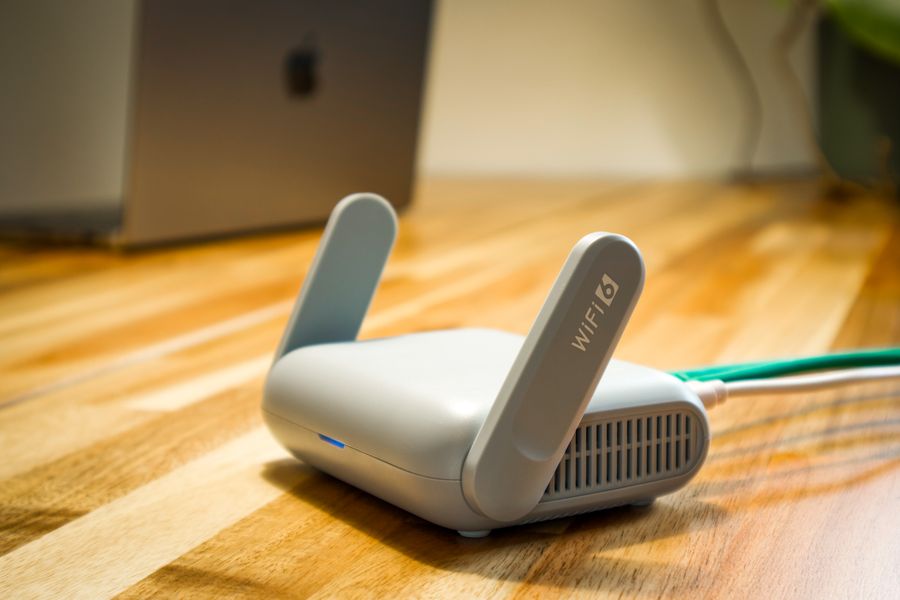
On an Android phone or a laptop, install a WiFi analyzer like WiFiman, NetSpot, or a Wi-Fi Analyzer app and scan the 2.4 and 5 GHz bands. You are looking for how many nearby networks pile onto each channel and how strong they are. On an iPhone, Apple blocks apps from scanning neighboring networks, so you can only read your own connection. Borrow an Android device or use a laptop tool for the full picture. Most mesh apps also show a channel or interference view of their own, so check there too. And here is a step people skip: power off cheap 2.4 GHz gadgets one at a time, a wireless mouse dongle or a bargain smart plug, and rescan. A single noisy device can flood 2.4 GHz and make the whole system look broken.
The Fixes That Actually Stop the FlappingWork through these in order. Change one thing, then use the network for a day before the next change, so you know what helped.
| Fix | What it does |
|---|---|
| Split bands into separate network names | Give 6 GHz, or each band, its own SSID so a device stops being steered mid-session. This is the single most common fix |
| Disable aggressive band steering | Stops the algorithm from shuffling devices between radios when it cannot decide |
| Band-lock problem devices | Pin reliable devices to 5 or 6 GHz and force flaky smart-home gadgets onto a 2.4 GHz-only name |
| Set a fixed 2.4 GHz channel | Choose 1, 6, or 11, whichever your scan shows least crowded, and leave it there |
| Pick a non-DFS 5 GHz channel | Use 36 to 48 or 149 to 165 to avoid radar-triggered dropouts on DFS channels |
| Narrow the channel width | Drop 5 GHz to 40 MHz, and 6 GHz off 320 MHz to 160 or 80, so you overlap fewer neighbors |
Two of these deserve a note. DFS channels in the middle of the 5 GHz band share spectrum with weather and military radar, and when your router detects a radar pulse it must vacate the channel and run an availability check, which knocks every device offline for a stretch. Avoiding DFS channels removes a whole category of mystery dropouts. And the 6 GHz band is your clean escape in most apartments today, because few neighbors are on it yet. Just accept that a device will hand 6 GHz back to 5 GHz once you move a room away. That handoff is normal, not a fault.
If you want to go deeper on the roaming and multi-link settings behind call stutter specifically, our companion guide on WiFi 7 mesh video call drops covers those controls in detail.

WiFi 7’s headline feature is the 320 MHz channel, double the previous maximum, and it only exists on the 6 GHz band. On a marketing page, wider always sounds better. In a crowded building, wider is often worse.
A 320 MHz channel spans a huge slice of spectrum, which means it overlaps more of what your neighbors are using and is more exposed to interference. TP-Link’s own explainer on the 320 MHz channel width acknowledges the tradeoff. In a dense apartment, a narrower channel usually holds a steadier connection than a wide one that keeps colliding with the building around you. Reach for the maximum width only if you have a clear room and a genuine need for multi-gigabit throughput, which streaming and calls do not require.
If Your Mesh Hides These ControlsSome systems, eero being the well-known example, run automatic channel selection and do not let you set a channel, choose a width, or split the bands into separate names. If that is your gear, you have fewer levers, but not none.
You can still reduce the flapping. Move the offending device closer to a node or reposition the node itself, remove the rogue 2.4 GHz interferers you found while scanning, keep the firmware current since several band-steering bugs have been fixed in updates, and use whatever temporary band or device controls the app does expose. If none of that settles a system you rely on for work, that limitation is a fair reason to consider hardware that gives you manual control. Our roundup comparing interference-focused options in the WiFi 6E vs WiFi 7 for a crowded apartment guide can help you weigh that.
Frequently Asked Questions Why does my WiFi 7 mesh keep switching my device to 2.4 GHz?Band steering moves devices based on signal and congestion, and in a crowded building it often reads the faster bands as busy and drops the device to 2.4 GHz. Splitting the bands into separate network names, or locking the device to 5 or 6 GHz, usually stops it.
Should I turn off band steering?If you make frequent video or voice calls and your device keeps flapping, yes, disabling aggressive band steering often smooths things out. The tradeoff is that you may need to pick a band manually, which is easy once you give each band its own network name.
Is a 320 MHz channel better for my apartment?Usually not. A 320 MHz channel, which only exists on 6 GHz, spans a lot of spectrum and is more exposed to interference. In a dense building a narrower 160 or 80 MHz channel typically gives a steadier connection, and it is plenty for streaming and calls.
How do I find the least crowded WiFi channel?Use a WiFi analyzer app such as WiFiman or NetSpot on an Android phone or a laptop to scan the 2.4 and 5 GHz bands and see which channels your neighbors crowd. iPhones cannot scan neighboring networks, so use an Android device or a computer for the full map.
Why does my connection drop even when the signal looks strong?A common cause is a DFS channel in the 5 GHz band. When the router detects radar on that channel, it must move and run a check, disconnecting devices briefly. Switching to a non-DFS channel like 36 to 48 or 149 to 165 removes that source of dropouts.
Final WordWiFi 7 gives you more bands and more speed, and in an apartment that abundance is exactly what makes the system restless. Stop treating the flapping as a mystery and treat it as a settings problem: scan to see your neighborhood, split your bands so devices hold still, avoid DFS channels, and resist the temptation to run the widest channel just because the box promised it. Do that, and the mesh stops chasing the perfect band every few seconds and simply keeps you connected, which was the point all along.
| # | Наименование новости | Тональность | Информативность | Дата публикации |
|---|---|---|---|---|
| 1 | WiFi 6E vs WiFi 7 for a Crowded Apartment: What to Buy When Interference Is Your Real Problem (2026) | 0 | 8.59 | 27-07-2026 |
| 2 | WiFi 7 Mesh Looks Fast but Video Calls Keep Dropping? A 2026 Settings Spreadsheet for MLO, Roaming, and Band Steering | 0 | 9.71 | 28-07-2026 |
| 3 | Bring your own network | 0 | 8.99 | 04-08-2026 |
| 4 | Горожане начали жаловаться на яркий свет в окна: что можно с этим сделать | 0 | 5 | 21-07-2026 |
| 5 | Android 16 vs iOS 19: Privacy Settings to Turn On First | 0 | 10.04 | 14-08-2026 |
| 6 | The Edge Architecture Mistake That Looks Right Until You're Managing 50 Sites | 0 | 8 | 27-04-2026 |
| 7 | Cloud IoT vs. Dedicated Edge Management: What Your Operation Actually Needs | 0 | 5 | 06-04-2026 |
| 8 | 5 Best Edge Computing Platforms in 2026: Full Breakdown | 0 | 7 | 26-02-2026 |
| 9 | The most beautiful act of resistance I’ve seen: Madrid tenants fighting landlords with art | Leah Pattem | 5 | 7 | 16-07-2026 |
| 10 | Москвичи пожаловались на выбрасывающих кучи мусора из окна соседей | 0 | 10 | 04-08-2026 |