Просмотр новости
Найдите то, что Вас интересует
 Спутники
 РН
РН SpaceX
 Роскосмос
 NASA
NASA
СпутникиРНSpaceXРоскосмосNASA
Having a web browser on your Apple Watch occasionally comes in handy, especially if you have a cellular model and left your phone at home.
(via Cult of Mac - Your source for the latest Apple news, rumors, analysis, reviews, how-tos and deals.)
Your Apple Watch has a web browser built-in, although it’s somewhat hidden. While Apple doesn’t have a full Safari app for the watch, you can still open links from Messages — so you can text yourself as a hack to browse the web. Or, you can install the μBrowser app for a dedicated user experience with bookmarks and even complications.
Admittedly, it’s not a fantastic experience. The screen is less than two inches tall, so many pages don’t render properly. It’s not especially speedy, either. If your watch is within range of your iPhone, it’ll use the slow Bluetooth connection with your iPhone as a relay instead of connecting to the Wi-Fi network directly, in order to save power.
But having a web browser on your Apple Watch occasionally comes in handy, especially if you have a cellular model and left your phone at home.
The open web, as always, is a great escape hatch for a lack of good native apps. And the Apple Watch App Store didn’t exactly set the world on fire. There are a slew of apps that leverage its fitness capabilities, and a few Pong games, but not much else.
The watchOS News app doesn’t let you freely read and browse stories. So if you’d like to keep up with your favorite Apple tech blogs, your best bet is through a web browser.
Table of contents: How to use Apple Watch web browser μBrowser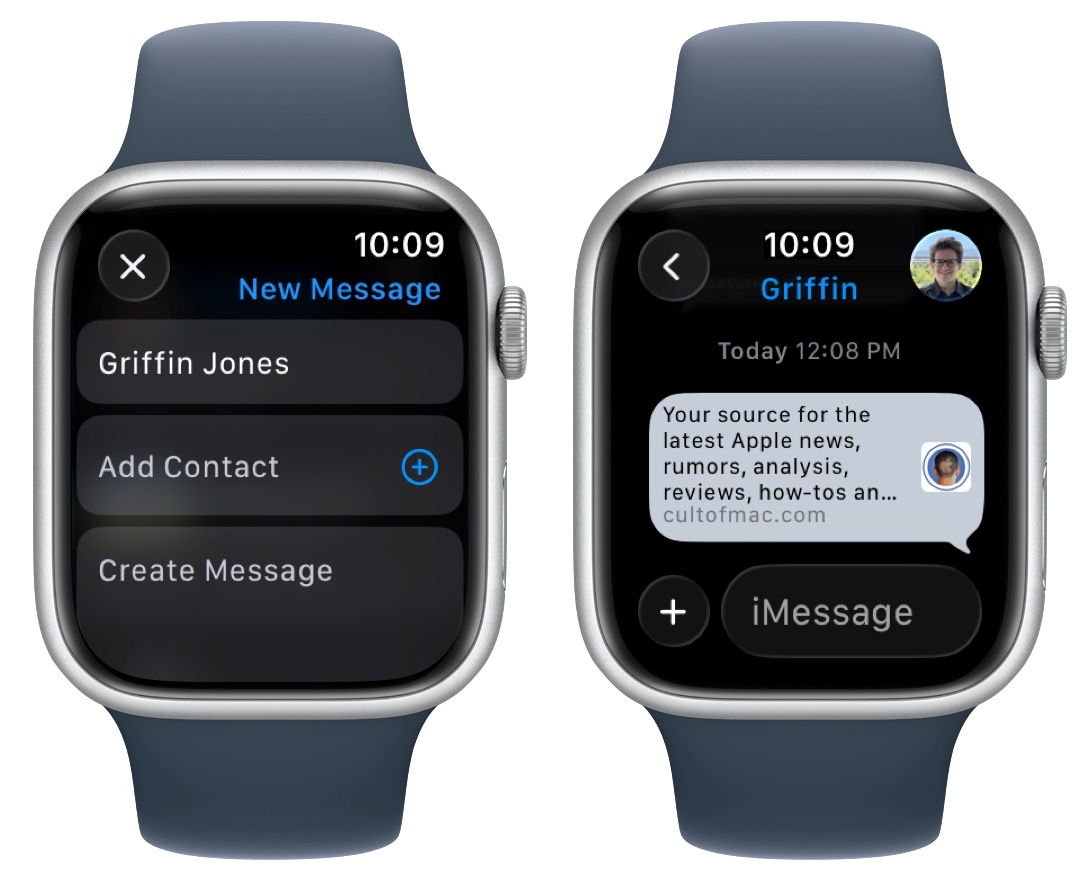 Text yourself a link to open a page on the Apple Watch.
You can technically browse the web from your Apple Watch from the Messages app. If you tap the Compose button in the upper right, then tap Add Contact, pick your own name and phone number from the list. Then, tap Create Message, type in the URL you want to visit and tap Send.
You’ll see a link you can tap to open the page in a mini Safari window. The user interface is a little basic; you can scroll using the Digital Crown and double tap to zoom in. Tap the address bar to reload the page, switch between Reader and the full web page, or go back.
It’s a little clunky, but there’s a better way.
Get μBrowser, an Apple Watch web browser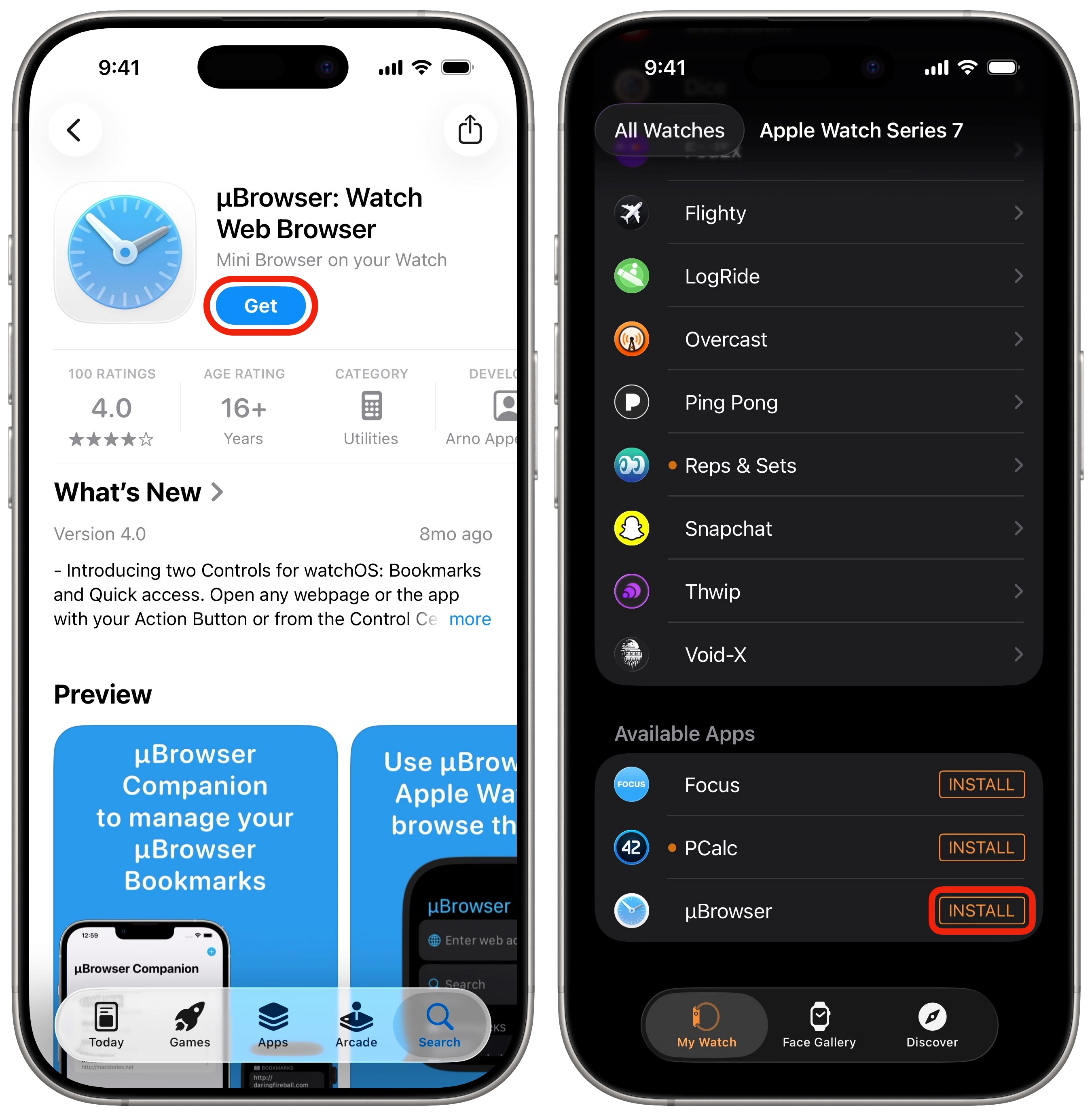 It’s only $2.99 with no in-app purchases. Easy win.
Download μBrowser on your Apple Watch from the App Store. It’s just $2.99 for a one-time purchase with no extra in-app purchases.
Get it from the App Store on your iPhone, then open the Watch app to make sure it installed there, too. If it’s not in the “Installed On Apple Watch” section, scroll down to “Available Apps” and tap Install.
Buy from: App Store
Price: $2.99 one-time
 Make sure you’re in List View if you’re not already.
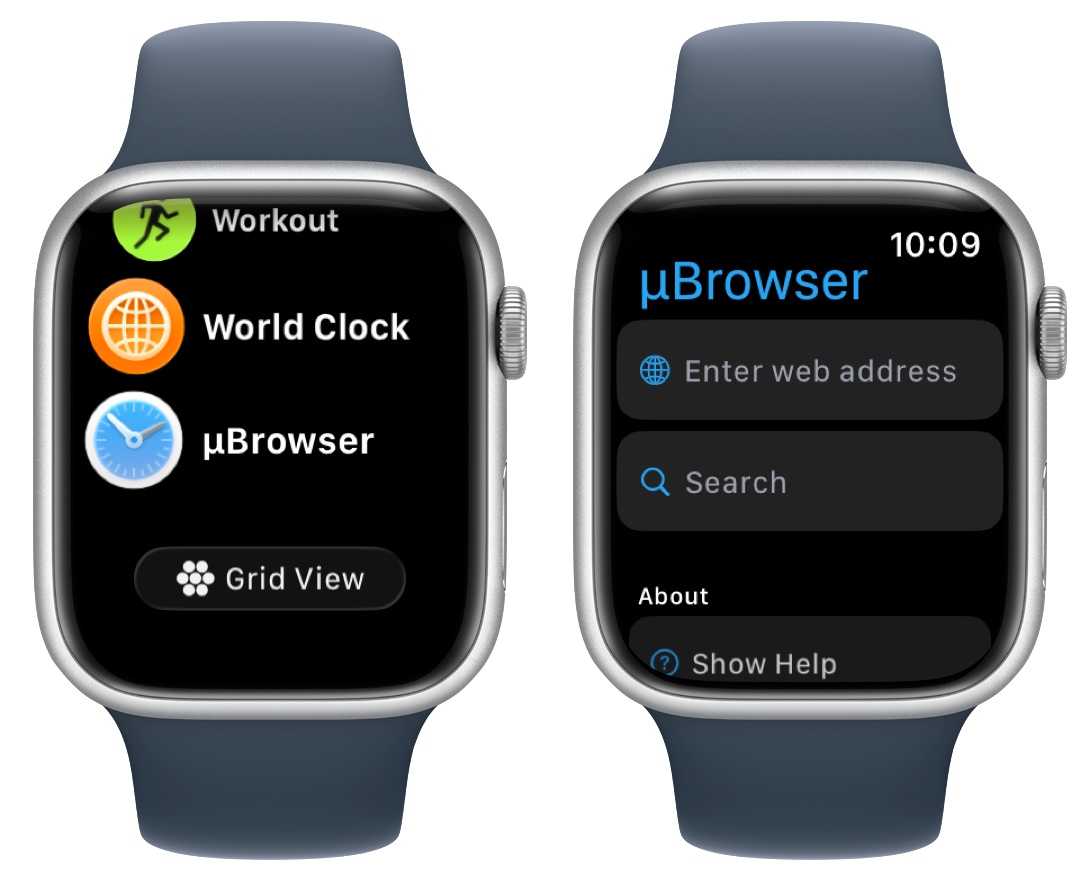
Scroll down to the bottom of the app list on your Apple Watch to find μBrowser. (If you don’t have it set to the List View already, I highly recommend it.)
Tap either Enter web address to enter a URL, or tap Search to use your default search engine. Tap the button in the bottom right to toggle between dictation, the QWERTY keyboard and the letter-by-letter scribble.
The browser itself is the same as the mini Safari browser above. You can tap the address bar to toggle Reader mode, reload or go back.
Save bookmarks for your favorite websitesAny website you enter in will show up in your history. To save it for later, swipe left on it, then tap the yellow star button. It’ll appear in a new “Bookmarks” section at the top.
Add a watch face complication for easy access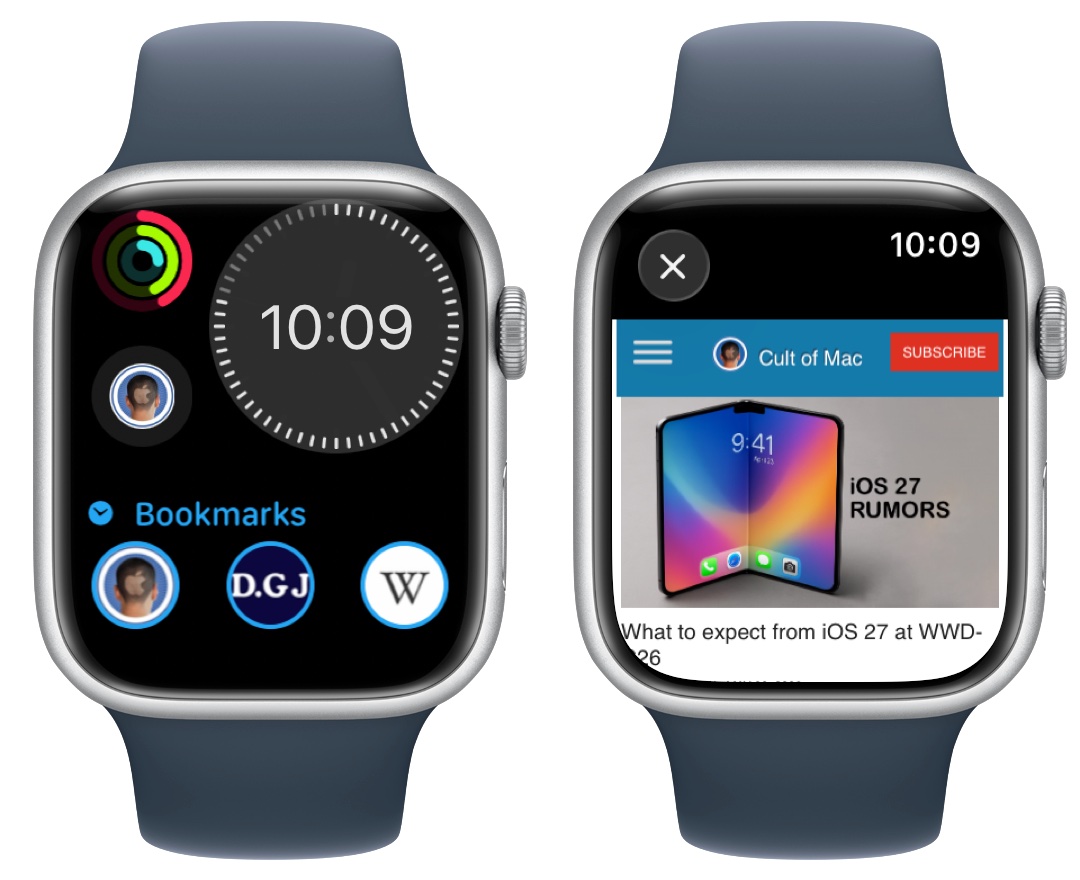 Add a single complication for a website, or your top three bookmarks.
If you want instant access to a website from your wrist, you can add a complication. Tap and hold on your watch face, tap Edit, swipe over to the Complications tab, and tap on a good spot. Scroll down to the μBrowser section at the bottom, and choose μBrowser Bookmark.
If there’s a particular website you like to check in on every once in a while, this is a great way to quickly get up to date.
More Apple Watch how-tos| # | Наименование новости | Тональность | Информативность | Дата публикации |
|---|---|---|---|---|
| 1 | 10 Apple Watch settings everyone should change | 0 | 25.11 | 02-06-2026 |
| 2 | 3 exercise tips every Apple Watch wearer should know | 0 | 21.89 | 04-06-2026 |
| 3 | Get the time without even looking at your Apple Watch | 0 | 23.7 | 14-08-2026 |
| 4 | 4 reasons you should stop tracking Apple’s sleep score | 0 | 21.74 | 26-04-2026 |
| 5 | Apple plans to reinvent Apple Watch lineup | 0 | 24.44 | 10-08-2026 |
| 6 | Safari can now watch websites for you — here’s how to set it up | 0 | 20.74 | 24-09-2026 |
| 7 | Pixel Watch 5 adds a feature Apple Watch desperately needs | 0 | 24.43 | 12-08-2026 |
| 8 | Leaker warns coming Apple Watch redesign will make your bands obsolete | -3 | 6 | 30-06-2026 |
| 9 | watchOS 27: Three new Apple Watch features being announced next week | 0 | 16.29 | 01-06-2026 |
| 10 | Watch how Apple Watch is enhancing professional surfing for athletes | 0 | 8.88 | 23-06-2026 |