Просмотр новости
Найдите то, что Вас интересует
 Спутники
 РН
РН SpaceX
 Роскосмос
 NASA
NASA
СпутникиРНSpaceXРоскосмосNASA
iOS 27 and macOS Golden Gate add a handful of Notes features that will supercharge your note-taking with added formatting and power features.
(via Cult of Mac - Your source for the latest Apple news, rumors, analysis, reviews, how-tos and deals.)
iOS 27 and macOS Golden Gate add a handful of Notes features that will supercharge your note-taking. There are new options for formatting, working with Markdown and even drawing on a Mac for the first time.
It’s not a big year for the popular note-taking app, but the changes Apple added will please plenty of power users. Here’s what’s new.
Notes began as an incredibly simple app that has steadily grown in features. Now, it can be a comprehensive knowledge base, a place to draft writing, a recipe book and so, so much more.
It’s cross-platform, so you can seamlessly switch between writing and editing on your iPhone, iPad, Mac and even Vision Pro or Apple Watch. Check out what’s new in Notes below.
Table of contents: Notes features in iOS 27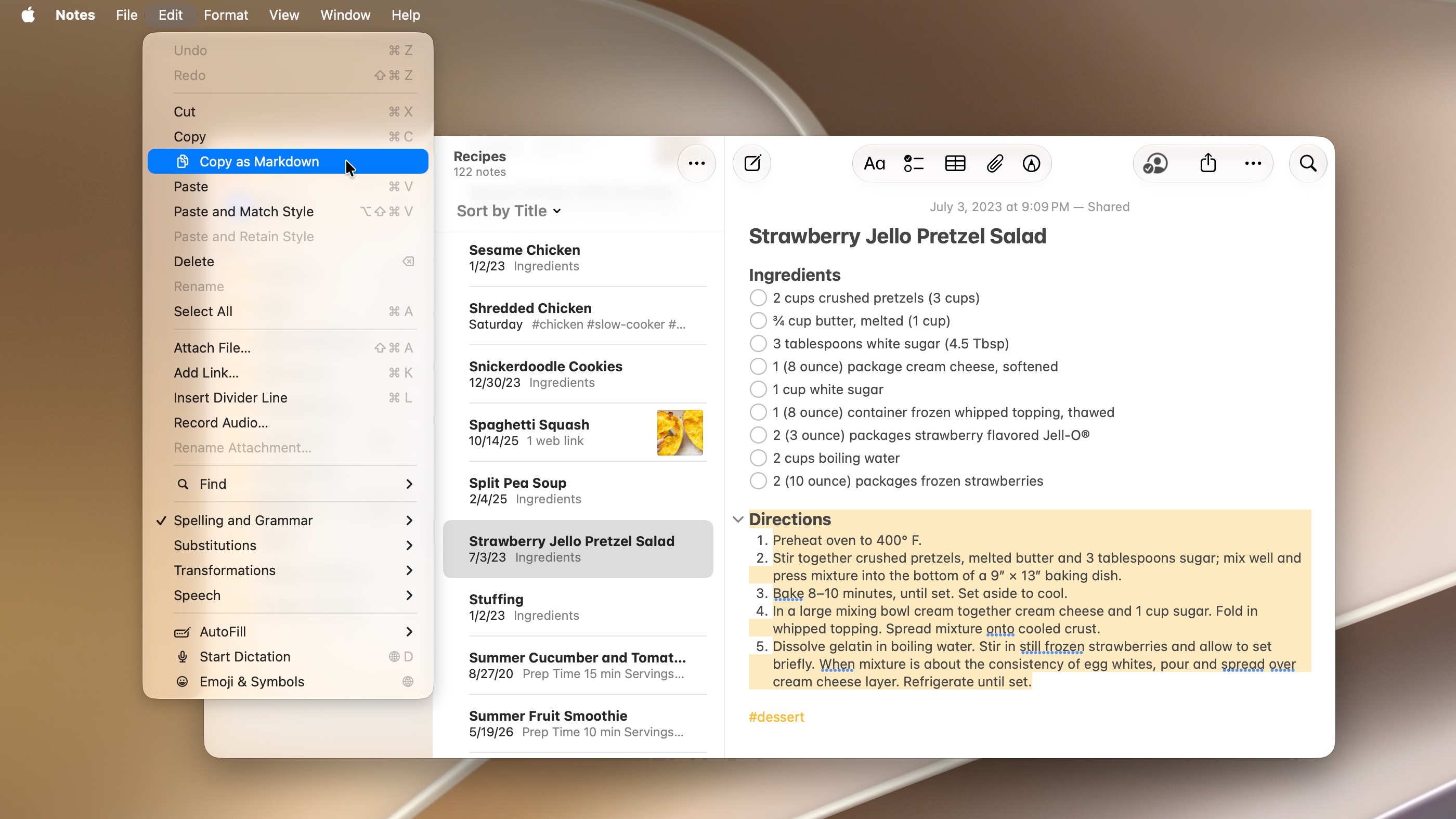 Find this handy feature in the menu bar.
Markdown is a popular syntax for formatting plain text. Reddit, Discord and GitHub all use Markdown formatting. It’s only risen in popularity with LLMs — no doubt because they’re trained on lots of Reddit and GitHub content. Tons of blogging systems use Markdown as well.
If you want to copy the contents of a note and paste them as Markdown, there’s now a much easier way. You don’t have to add the formatting back in by hand.
On a Mac or iPad, select some text, then go to the Edit menu and select Copy as Markdown. It’ll surround your bold text with **asterisks**, add ## pound signs in front of your headers and [properly format your links](www.cultofmac.com). If you don’t see the Edit menu at the top of the screen on an iPad, tap Notes in the upper left first.
I took it one step further — I asked Siri to make a Shortcut that converts the contents of the clipboard from Markdown to HTML. Now, I can draft product reviews in Notes and paste them directly into WordPress, which powers Cult of Mac.
Draw on a Mac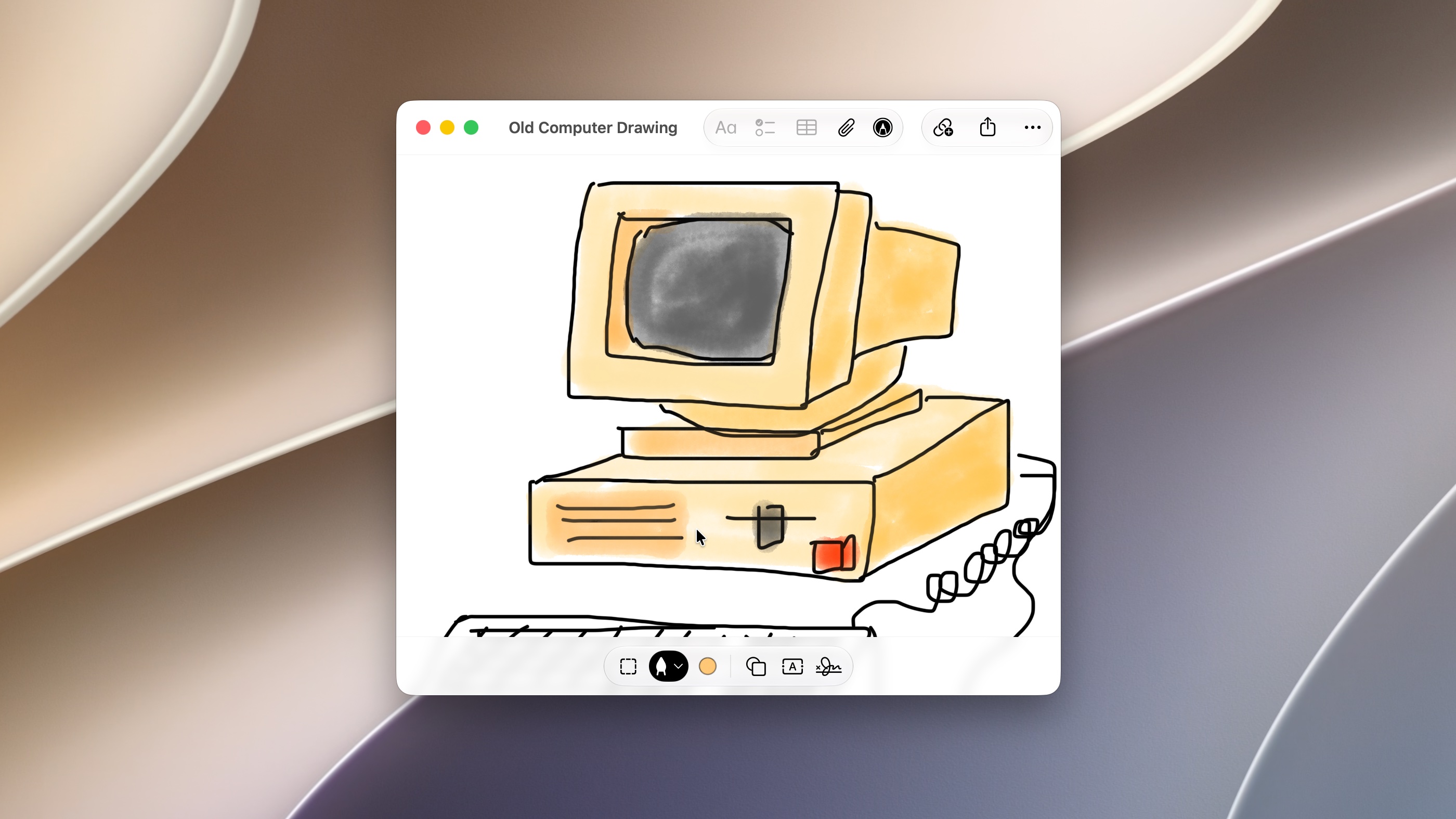 Draw and color sketches from a Mac.
You can now create and edit drawings inside notes on a Mac — not just an iPhone or iPad. Click the Markup button (the pen icon) in the toolbar to add a drawing to the bottom of a note. (To insert one in the middle, right-click and select Attachments > Insert Drawing).
You have tons of tools — various pens, a marker, pencil, crayon, watercolor brush and eraser. You can adjust the thickness and color. There are even options to insert shapes, text or a signature.
Drawing works with a mouse or trackpad, but adding this feature now is a clear indicator that a touchscreen Mac is coming soon.
Add divider lines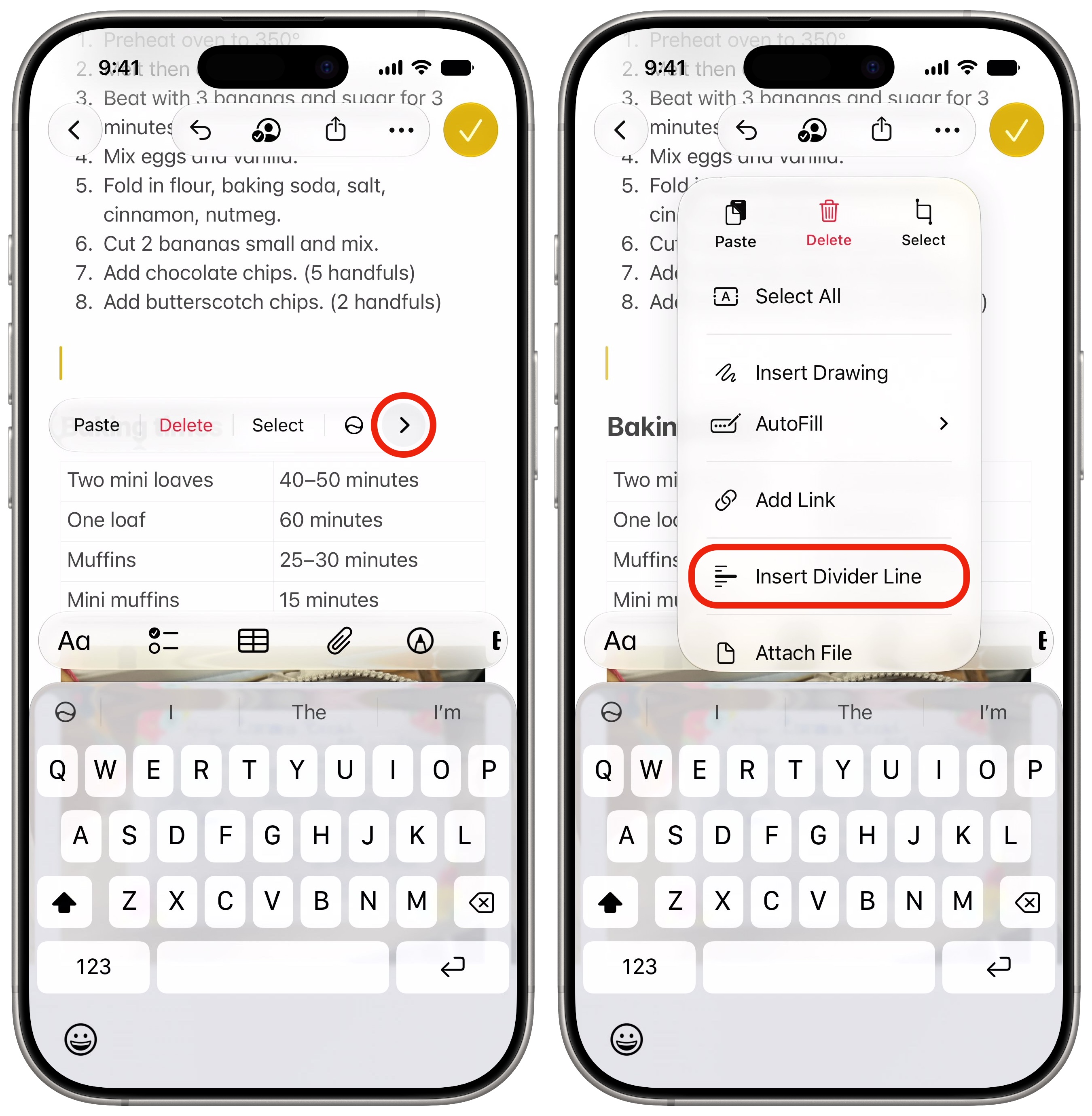 Add a divider line to separate sections.
Dividing lines are big visual markers that can divide sections of a document. And now, they come to Notes.
On a Mac, or go to the Edit menu and choose Insert Divider Line, or use the keyboard shortcut ⌘L. You can also right-click and go to Attachments > Insert Divider Line.
On an iPhone or iPad, tap the cursor, then tap the arrow button on the right and tap Insert Divider Line.
Link to a specific section Link to a specific section of a note.
Apple added links between notes in iOS 17. It’s incredibly convenient for connecting similar topics, like a recipe that includes another recipe or a related concept from another lecture. But if you’re linking to a long and thorough note, you may want to be more precise and link to a specific section.
That’s finally possible. On a Mac, go to Edit > Add Link or hit ⌘K. On an iPhone or iPad, tap the Link button in the editing toolbar. When you type in a note title, you’ll see a new item below that says Link to Section. Pick a section from the note to link to.
More new features in iOS 27| # | Наименование новости | Тональность | Информативность | Дата публикации |
|---|---|---|---|---|
| 1 | iOS 27 just broke your oldest iPhone habit | 0 | 5 | 02-07-2026 |
| 2 | Tons of new features in Photos help sort your massive library in iOS 27 | 6 | 6 | 30-06-2026 |
| 3 | 8 new features in Safari in iOS 27 that make browsing better | 5 | 5 | 22-06-2026 |
| 4 | iOS 27 beta 2: All the new features and changes | 0 | 5 | 23-06-2026 |
| 5 | Apple Wallet in iOS 27 finally does more than hold your cards | 0 | 23.02 | 15-09-2026 |
| 6 | 5 ways the Camera in iOS 27 is more refined than ever | 5 | 5 | 03-07-2026 |
| 7 | Apple Translate is getting 9 new languages in iOS 27 | 0 | 5 | 09-07-2026 |
| 8 | 9to5Mac Daily: June 15, 2026 – More iOS 27 features and changes | 0 | 3 | 15-06-2026 |
| 9 | 10 days in iOS 27 beta heaven/hell [Cult of Mac podcast No. 25] | 0 | 5 | 20-06-2026 |
| 10 | Apple just added a Google Cloud warning for your iPhone’s AI features | 0 | 5 | 07-07-2026 |