Просмотр новости
Найдите то, что Вас интересует
 Спутники
 РН
РН SpaceX
 Роскосмос
 NASA
NASA
СпутникиРНSpaceXРоскосмосNASA
Learn how to photograph fireworks with your iPhone. These tips and hardware recommendations will make your snaps sparkle.
(via Cult of Mac - Your source for the latest Apple news, rumors, analysis, reviews, how-tos and deals.)
With a little know-how, you can photograph fireworks with an iPhone and achieve great results. But just pointing and shooting with no prior planning can lead to blurry, unexciting fireworks photos.
For instance, does this sound familiar? Last year’s fireworks made you say ooh and ahh, but when you look at your iPhone photos from that night, the sound you make is more of an ugh. Don’t blame Siri or some engineer in Cupertino for previous photo fails. The iPhone camera, as mighty as it is, can’t do all the thinking for you — especially in challenging lighting conditions like a fireworks display.
But with a little thought and preparation, you can make this holiday worth reliving on your iPhone camera roll. Below are some simple tips to make your iPhone fireworks photos sizzle.
Apple never stops improving the iPhone camera (or the computational photography wizardry that makes so many difficult shots shine). However, to properly photograph fireworks, you might need to spend a couple of bucks before the big night.
You will want a tripod to steady your device. And you’ll want to turn some Camera settings on or off. Don’t worry — nothing I suggest requires a formal photography education. Want to shoot better fireworks photos this time around? This is what you need to know.
Table of contents: How to photograph fireworks with your iPhone Get a tripod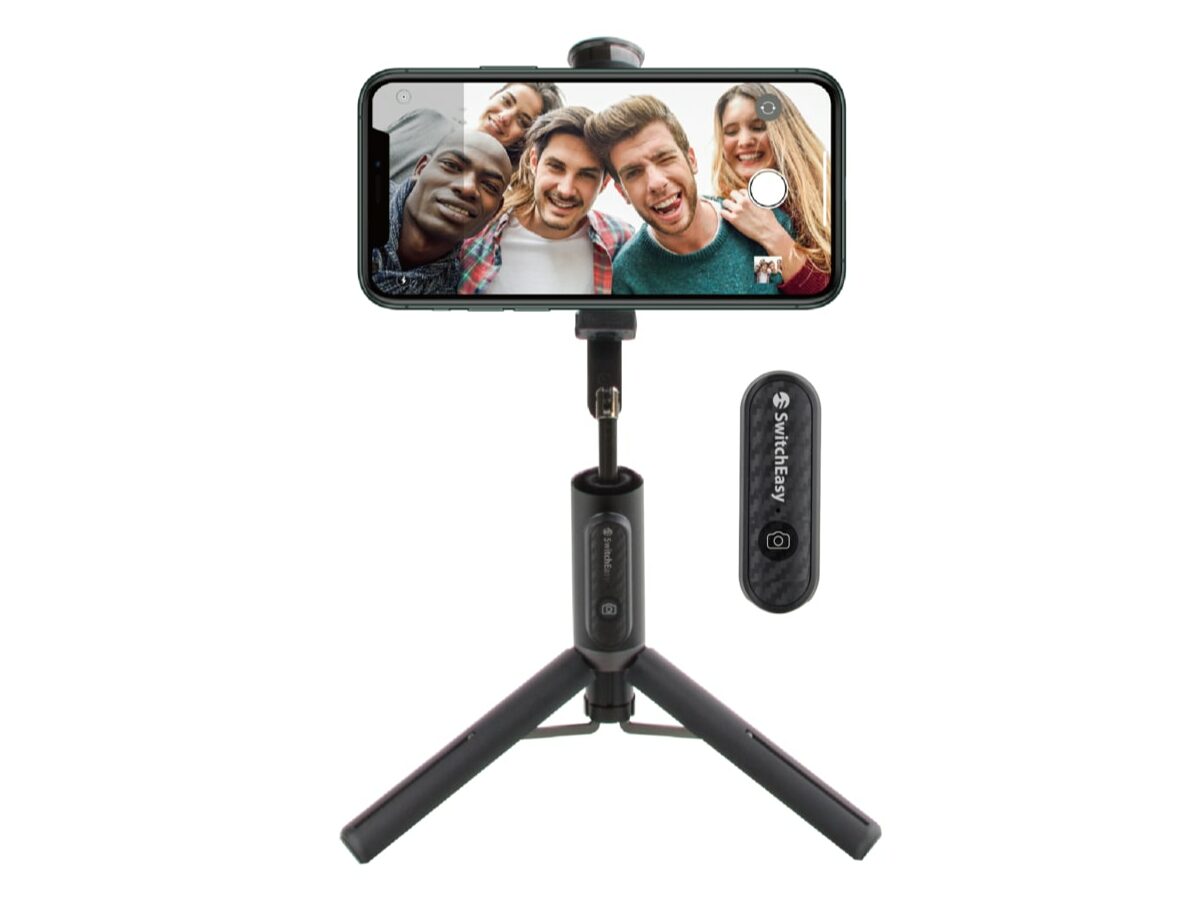 Stick your iPhone on a tripod and keep it steady on a tabletop.
The first fireworks photography tip is crucial if you want to know how to capture the best possible pics: Get a tripod and use it.
Fireworks will reveal just how much shake there is when you take a photo with an iPhone. When you hold your device out in front of you in low light, something as simple as your own breathing will blur the image.
This is not something you normally worry about when taking pictures in the middle of a sunny day, because there is plenty of light and the iPhone camera can give you a fast enough shutter speed. With a tripod, either large or tabletop, you will immediately increase your chances of great fireworks photography. Just be sure you don’t plant it in someone’s leg or obstruct the view of people around you.
Whatever tripod you use, make sure it comes with a mount to hold an iPhone. Amazon Basics makes an inexpensive model that will do the trick (and might even arrive in time for Fourth of July fireworks). Joby’s more expensive PodZilla SuctionTripod gives you more options for creative mounting. And we also recommend the SwitchEasy EasySelfie due to its built-in tripod stand and remote control — we gave it five stars in our review.
Turn off HDR on older iPhones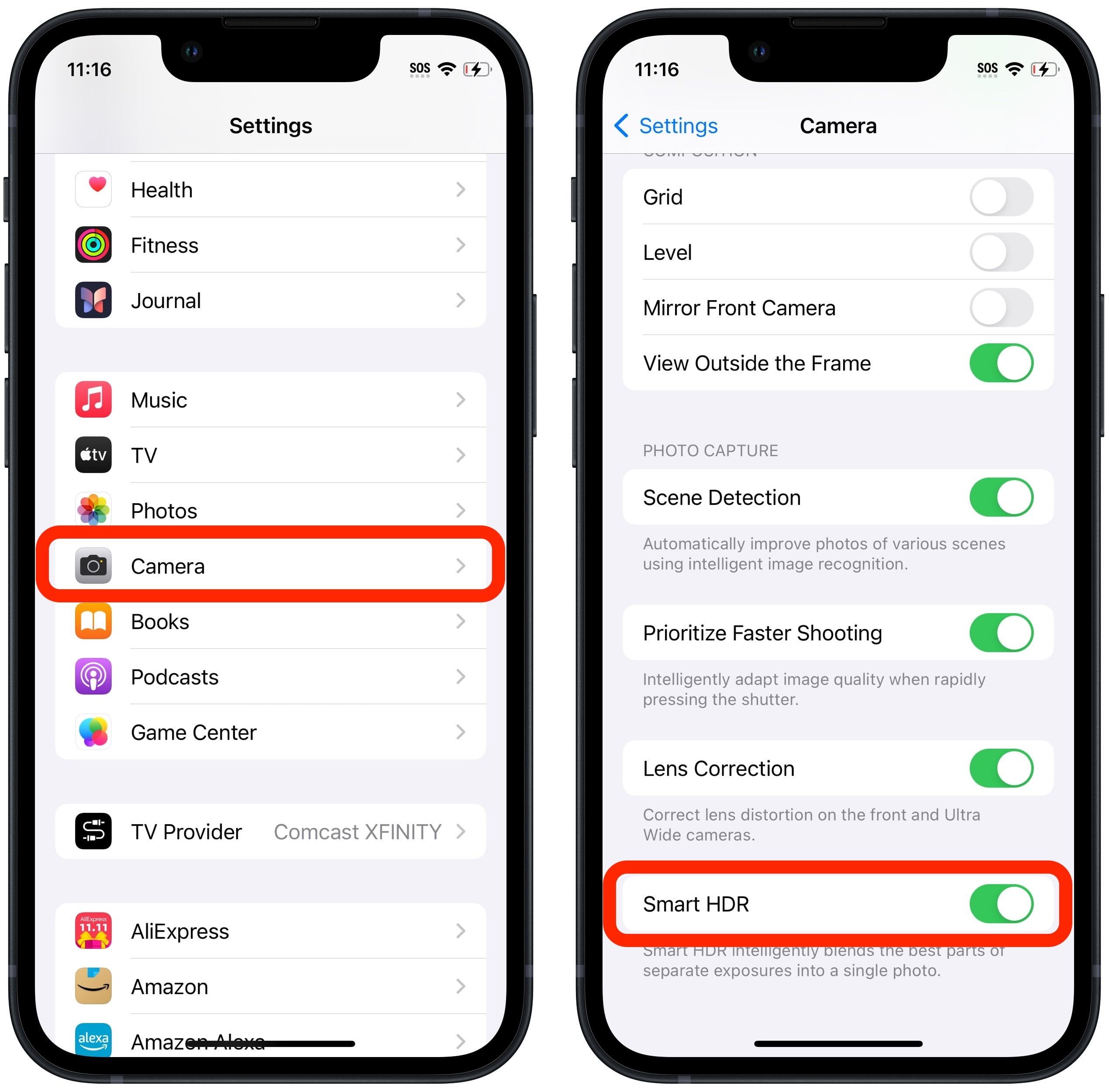 On older iPhones, turn off HDR in Settings for better action shots.
HDR, or High Dynamic Range, is a technique for capturing photos with enhanced detail and color in both bright and dark areas. The HDR setting is great for photographing high-contrast scenes like landscapes or scenes where the subject is backlit or in shade. But HDR is not good for photographing moving objects, like fireworks.
In HDR mode, the iPhone camera combines multiple exposures to create a photo, resulting in potential blurriness for objects in motion. However, you can only turn HDR on or off on older iPhones — iPhone 12 and older. By default, iPhone 13, 14 and 15 automatically uses HDR when the camera’s AI judges it to be effective (both rear and front cameras).
With newer iPhones, you can’t turn Smart HDR on or off. If you have iPhone 12 or older:
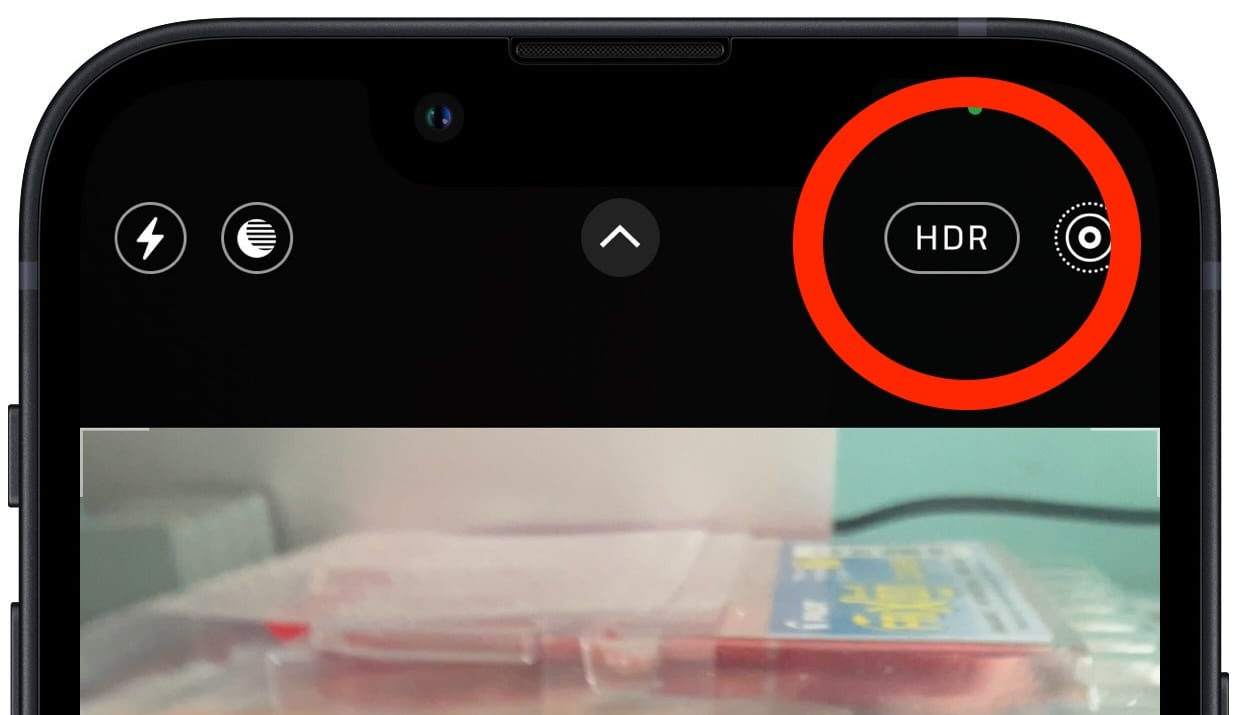 You can toggle HDR on or off in the Camera app.
Turn off your iPhone camera’s flash for the best fireworks photography results
You can toggle HDR on or off in the Camera app.
Turn off your iPhone camera’s flash for the best fireworks photography results
Next, make sure your iPhone’s flash is turned off. When you’re outside at night and preparing to take fireworks photos, your iPhone will want to activate your flash because of the surrounding darkness.That’s not going to work with fireworks.
You know how sometimes you watch a big championship sporting event and see all the flashes from cameras in the stands going off? Looks cool on TV, but the light from all those flashes isn’t reaching the action on the field. The flash provides only a wink of light to illuminate a few feet in front of you.
Worst of all, it adds a several-seconds-long delay for taking pictures, so you’ll totally miss the great fireworks photography shot you’re trying to get.
To turn the flash off, open the Camera app and press the lightning bolt icon in the top right corner. This toggles the flash on and off.
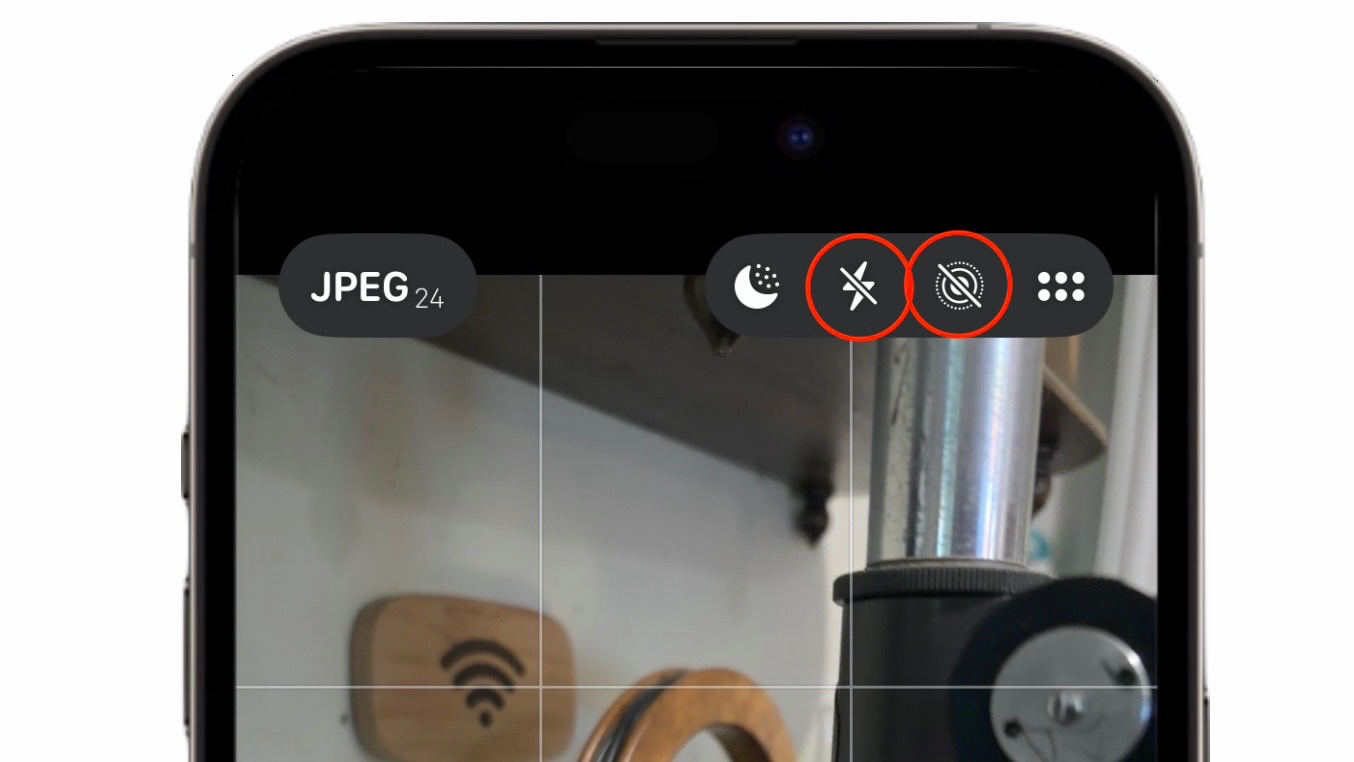 Toggle the flash icon in the upper right corner to turn flash on or off. Toggle the circles icon in the upper right corner to turn Live Photos on or off
Burst Mode and Live Photos are both great for photographing moving subjects like fireworks. You’ll get better fireworks photos on your iPhone if you turn on Live Photos. Instead of taking a static image, Live Photos captures three seconds of movement and sound — basically, a mini video. Later, in the Photos app, you’ll be able to edit your Live Photos to select the best shot.
To enable Live Photos, go to the iPhone’s Camera app and tap on the Live Photos icon in the top right corner — it looks like three concentric circles. Tapping it toggles Live Photos on and off.
Another good technique for photographing fireworks is using the iPhone’s Burst Mode. To take a burst of pictures, simply press and hold the shutter button on your iPhone camera and swipe to the left. Your iPhone will take 10 photos per second until you release the shutter button. You’ll know you’re taking a burst photos because you’ll hear a rapid shutter sound.
You can also use your iPhone’s Volume Up button to take burst photos. To enable it, go to Settings > Camera > Use Volume Up for Burst.
Create a long exposure out of Live Photos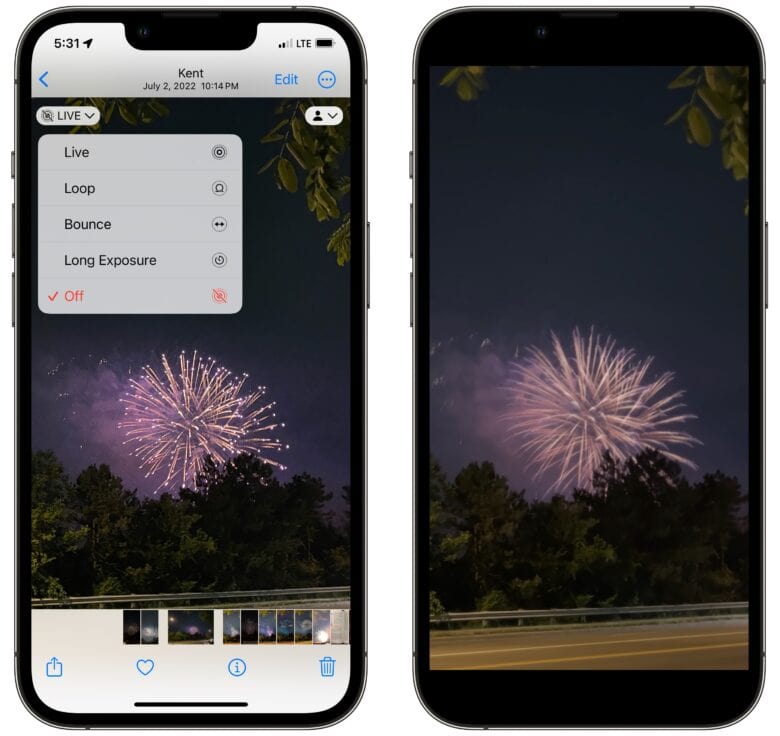 Try out a few of these on your best shots.
You can turn your fireworks photography into a beautiful streak of color or an animated GIF using the iPhone’s Live Photos effects, which you can also watch in our video:
If you have a new enough iPhone (iPhone 11 and later), your fireworks photography will benefit from Night mode. This feature turns on automatically in low-light situations. When active, the Night Mode icon  in upper left corner of the Camera app turns yellow. Make sure you didn’t turn it off somehow.
How about the iPhone’s Panorama setting? I’ve lived in places where you can see the fireworks shows of nearby communities. You just might get something cool. Keep the tripod planted and slowly rotate the mount. Obviously, don’t move your lens to the next spot until after you’ve taken the first picture.
Time-lapse. There’s not much to say about this setting other than ooh and ahh.
Simply capturing video of the fireworks is also a nice option. This way, you can hit record and enjoy the show without constantly looking at your screen.
Pro tip for how to photograph fireworks: Scout your location first!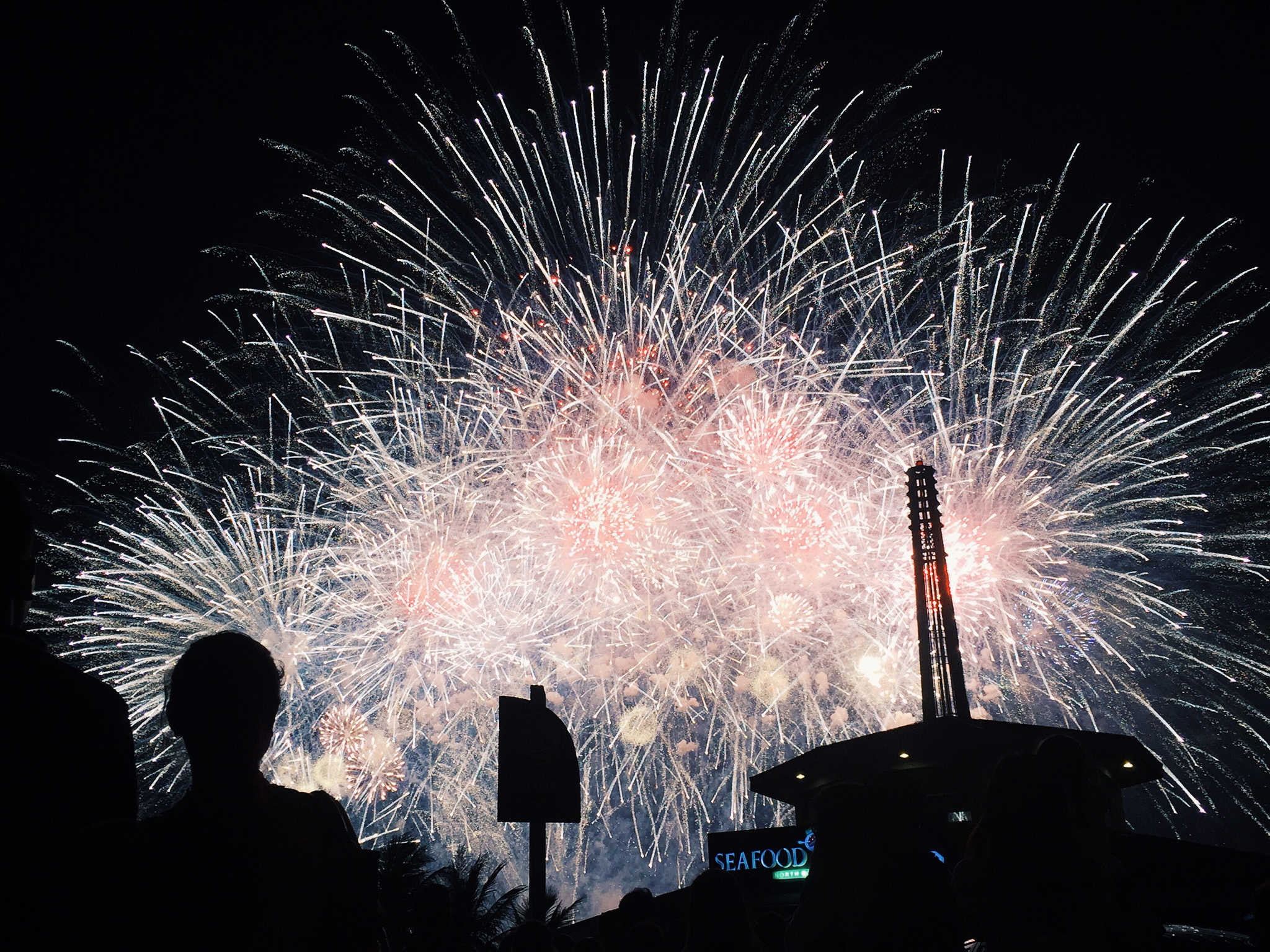 Location, location, location!
This sounds like a no-brainer, but putting thought into where you will stand is critical to capturing stunning fireworks photography with your iPhone. Let’s say the big bangs are going to go off over a lake. If you set up too close, the fireworks might shoot out of view. Standing farther back could help you get a fuller view of the sky, and you also might catch interesting reflections off the water or even some light falling on boats, bridges or faces in the crowd.
Identifying a distinctive element in the foreground that gives you a sense of place also makes for a more interesting picture.
Shoot away to capture the best fireworks photosLegendary photographer Henri Cartier-Bresson once said, “You have to milk the cow a lot and get lots of milk to make a little piece of cheese.” He wasn’t talking about how to master iPhone fireworks photography, but this tip still applies. Take a lot of pictures. Because the more you make, the more likely you will end up with a couple of really nice ones.
Just be sure you have plenty of storage on your device by sunset.
More iPhone photo tips and tricks:Note: We originally published this post on how to take great iPhone fireworks photos on July 3, 2018. We updated the information.
| # | Наименование новости | Тональность | Информативность | Дата публикации |
|---|---|---|---|---|
| 1 | 8 built-in editing tools to glow up your pictures on your iPhone | 0 | 24.6 | 30-05-2026 |
| 2 | 5 ways the Camera in iOS 27 is more refined than ever | 5 | 5 | 03-07-2026 |
| 3 | Check out the best Amazon Prime Day deals on our favorite Apple gear | 5 | 5 | 23-06-2026 |
| 4 | 5 tips for natural-looking, lo-fi pictures on your iPhone | 0 | 30.33 | 26-05-2026 |
| 5 | Fed up with iPhone autocorrect? Here’s how to reset it. | 0 | 20 | 10-05-2026 |
| 6 | 3 reasons why the iPhone 18 won’t launch this fall | 0 | 5 | 08-07-2026 |
| 7 | Still using an Intel Mac? Here are 6 reasons it’s time to upgrade. | 1 | 5 | 27-06-2026 |
| 8 | Photographing fireworks? Here’s the four things you need to know | 0 | 5 | 03-07-2026 |
| 9 | Apple price hikes on Mac and iPad make Amazon Prime Day deals even better | 2 | 4 | 25-06-2026 |
| 10 | Apple may pull an iPhone X with its first foldable iPhone | 0 | 3 | 06-07-2026 |