Просмотр новости
Найдите то, что Вас интересует
 Спутники
 РН
РН SpaceX
 Роскосмос
 NASA
NASA
СпутникиРНSpaceXРоскосмосNASA
If your iPhone autocorrect has been especially bad lately, you’re not alone. Learn how to reset autocorrect on your iPhone really quickly.
(via Cult of Mac - Your source for the latest Apple news, rumors, analysis, reviews, how-tos and deals.)
If you’ve noticed that the iPhone’s autocorrect has been especially bad over the last few months, you’re not alone. It appears that iOS 26.2 introduced a bug that made the keyboard much more frustrating to use. Luckily, the solution is simple. You can learn how to reset autocorrect on your iPhone really quickly.
First, you need to update to iOS 26.4, the release that fixed the iPhone’s autocorrect bug. Then, resetting your keyboard dictionary will get rid of any bad patterns it may have picked up since December.
Keep reading or watch our quick video.
The iPhone‘s autocorrect feature is supposed to be smart. It’s supposed to be helpful. It’s not supposed to drive you half-mad by constantly changing what you’re trying to type into something else entirely.
Autocorrect builds a personal dictionary for you over time. It adds the names of your contacts, the apps on your iPhone, and other proper nouns relevant to you. If you spell and capitalize a word a specific way, it should learn that automatically.
However, autocorrect can be frustrating if it adds a last-minute typo in the split second before you send an important text or email. (See also: Unsend and edit iPhone messages after you send them.)
If you want to start over, and undo any weird spellings added to your custom dictionary, you can reset autocorrect on your iPhone from the Settings app.
Update to iOS 26.4iOS 26.4 included a fix for the autocorrect problems introduced in iOS 26.2. You can install it in Settings > General > Software Update. It’s available for all the same devices as iOS 26.
However, updating to iOS 26.4 alone might not be enough to fix your autocorrect problems. Your iPhone might have learned some incorrect patterns while it was broken. If you’re experiencing autocorrect problems, you should reset your personal iPhone dictionary.
How to reset autocorrect in Settings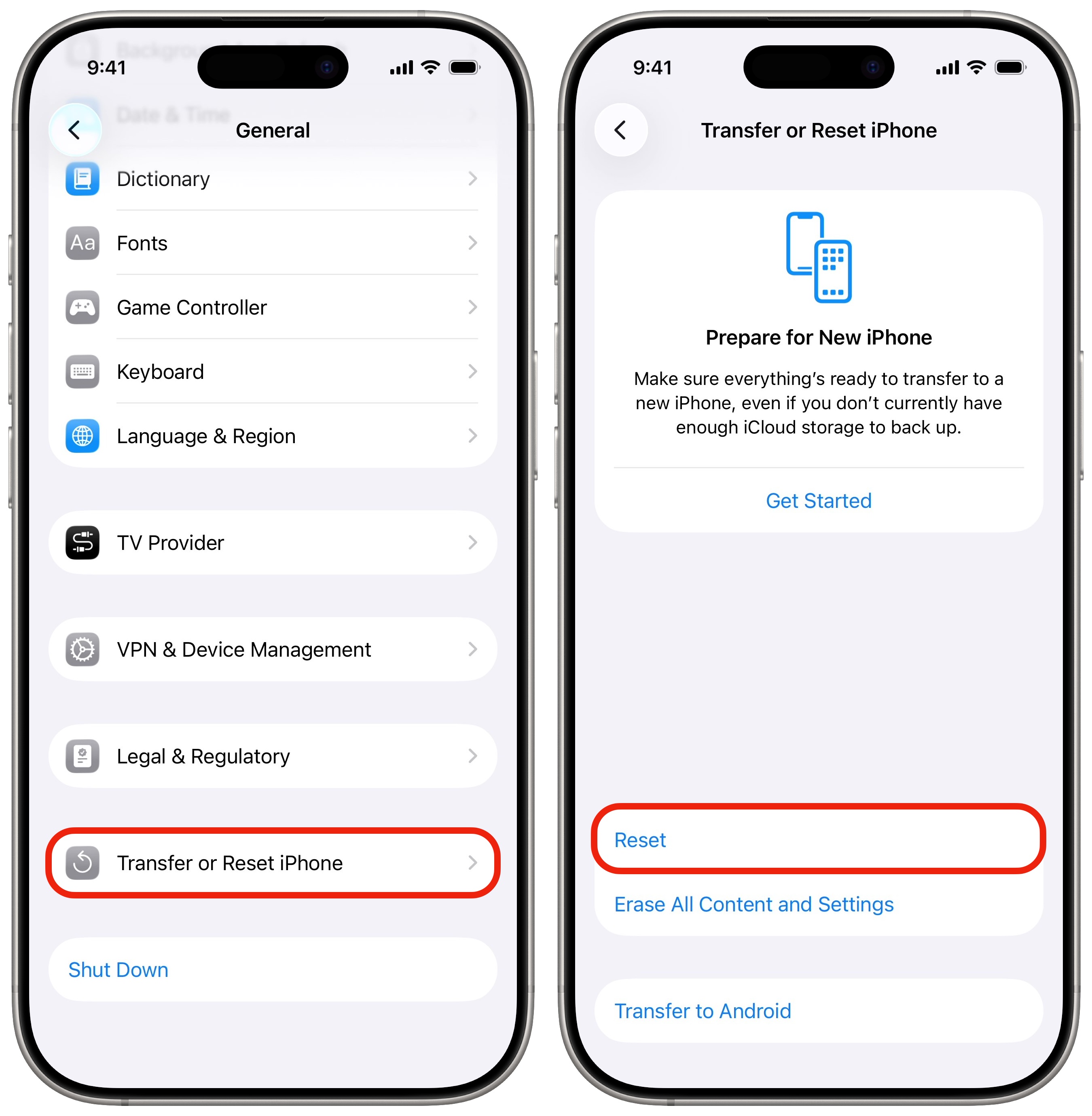 Careful now.
After updating your iPhone to iOS 26.4, head over to Settings and tap General. Scroll down to the very bottom and tap Transfer or Reset iPhone.
Be very careful on this screen. You don’t want to fat-finger your way into deleting your eSIM or erasing your data.
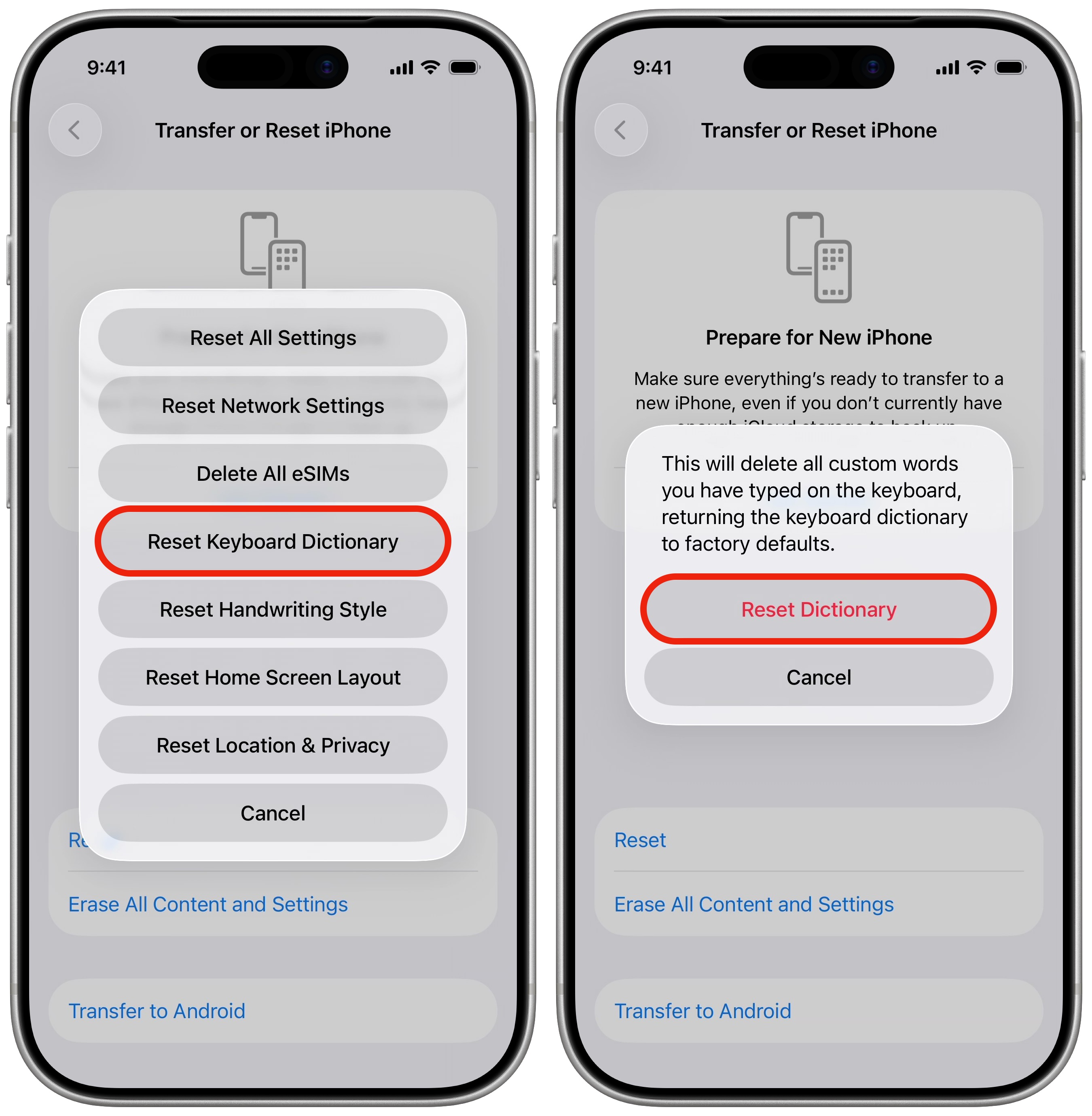 Start fresh.
Tap Reset, and from the list of options, tap Reset Keyboard Dictionary. You’ll be asked to type in your passcode. Then, you’ll be warned one last time. Tap Reset Dictionary to confirm.
After that, your iPhone won’t need to reboot or anything. That’s it. Hopefully, autocorrect will work better for you going forward.
More iPhone tipsNow that you know how to reset autocorrect on your iPhone, check out these other pro tips:
| # | Наименование новости | Тональность | Информативность | Дата публикации |
|---|---|---|---|---|
| 1 | 8 built-in editing tools to glow up your pictures on your iPhone | 0 | 24.6 | 30-05-2026 |
| 2 | How you can stop the endless madness of iPhone notifications | 0 | 26.24 | 14-05-2026 |
| 3 | Remap your Mac’s keyboard to unlock power features | 0 | 25.27 | 22-05-2026 |
| 4 | Easy way to record and transcribe your iPhone calls | 0 | 18.38 | 27-04-2026 |
| 5 | My top 3 tips for making an iPhone Home Screen that doesn’t suck | 0 | 22.53 | 09-05-2026 |
| 6 | Regret installing iOS 27 beta? Here’s how to get back to iOS 26. | 0 | 24.41 | 10-07-2026 |
| 7 | 5 tips for natural-looking, lo-fi pictures on your iPhone | 0 | 30.33 | 26-05-2026 |
| 8 | Replace basic voice typing with context-aware dictation for just $59.99 | 0 | 25.68 | 14-08-2026 |
| 9 | How to take fabulous fireworks photos with your iPhone | 5 | 5 | 03-07-2026 |
| 10 | iOS 27 just broke your oldest iPhone habit | 0 | 5 | 02-07-2026 |